9 min read
How to Redesign a Room With AI (Step-by-Step)
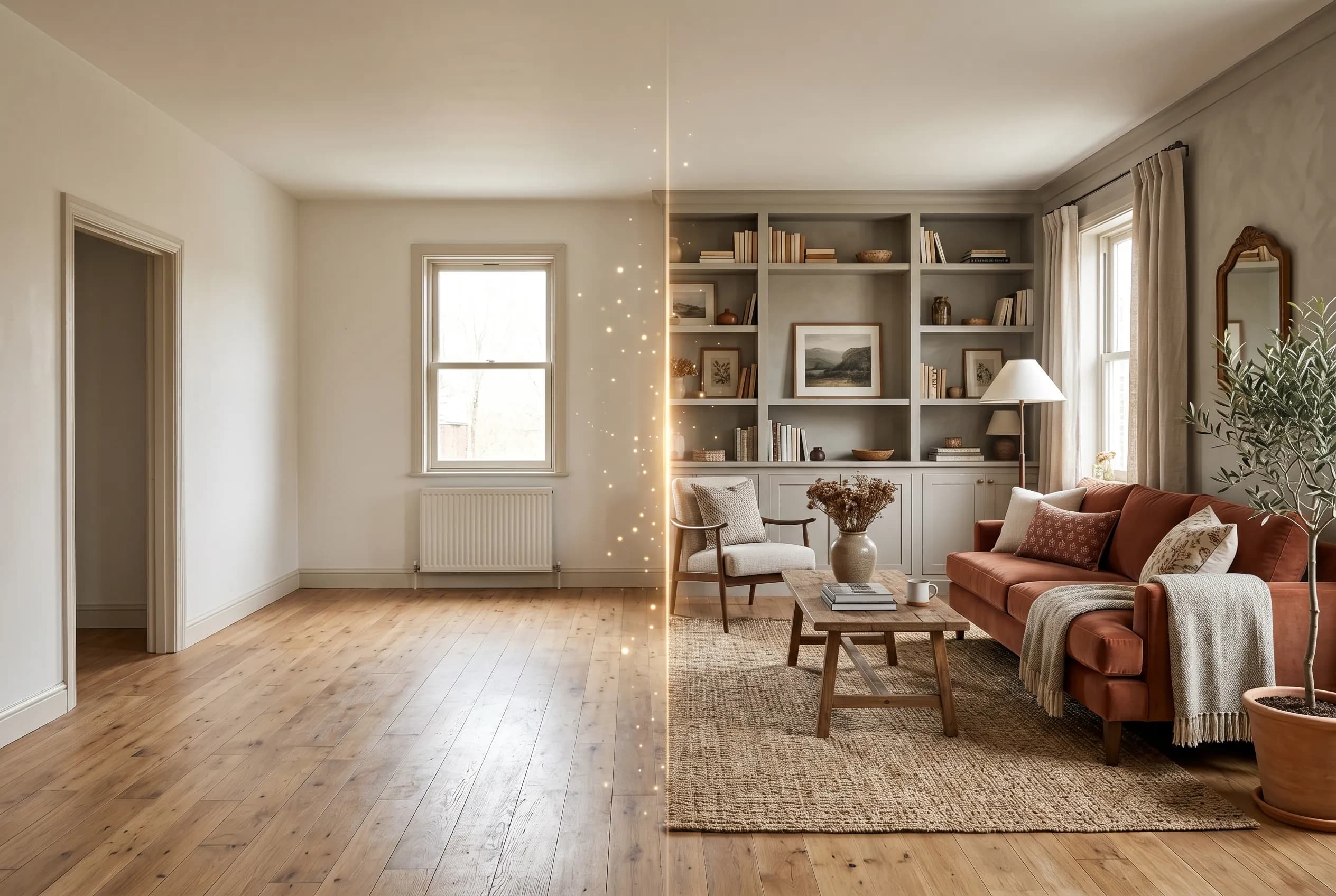
Most people redesign a room the slow way: a half-formed idea, a few saved screenshots, and a lot of second-guessing about whether a navy sofa will read sophisticated or just dark. AI shortcuts the guessing. You photograph the room you already have, ask the software to reimagine it, and watch a believable version of the finished space appear in seconds, with your real windows, ceiling height, and floor still in place.
This is a step-by-step walkthrough using InteriorLab, an AI design app for iPhone and Android. We will go from a single phone photo to a styled room you can refine piece by piece, preview in your actual space through AR, and then shop. No 3D modeling, no design degree, and no demolition required to find out whether an idea is worth pursuing.
Step 1: Take a photo the AI can actually work with
The redesign is only as good as the input, and a rushed photo is the most common reason a result looks off. Shoot in daylight if you can, with the overhead lights on too, so the model reads the room's real proportions instead of guessing at shadows. Stand in a corner and capture as much of the floor, two walls, and the ceiling line as possible. That geometry is what the AI anchors to when it places new furniture.
Keep the lens level rather than tilted up or down, which warps perspective and confuses the result. Clear the obvious clutter, but you do not need to stage anything. If your phone has LiDAR, you can scan the room instead of photographing it, which gives the app accurate depth and makes later AR previews line up more precisely. A clean, well-lit, wide shot beats a beautiful but cramped one every time.
- Shoot wide: include floor, two walls, and the ceiling line for accurate scale.
- Use daylight plus room lights; avoid harsh single-source shadows.
- Hold the phone level to keep verticals straight.
- LiDAR-scan instead of photographing when your device supports it for better AR alignment.
Step 2: Choose a style with intent, not just vibes
InteriorLab offers 19 design styles, and the temptation is to tap through all of them. Resist that for a minute. Picking a style with some understanding of where it comes from will get you to a room you actually want to live in, rather than a slideshow of pretty options you cannot choose between.
Scandinavian leans on pale woods, white walls, and restraint, a reaction to long dark Nordic winters that prizes light above ornament. Mid-century modern pulls from the 1950s and 60s: tapered legs, walnut, and clean low silhouettes from designers like the Eameses and Hans Wegner. Japandi marries Japanese minimalism with Scandinavian warmth, all natural materials and quiet palettes. Industrial keeps raw brick, blackened steel, and exposed structure. If your room gets little natural light, a bright airy style will fight you; a warmer, darker scheme like industrial or moody traditional will often look more convincing. Apply a style and the room transforms instantly, so try two or three deliberate choices rather than chasing all 19.
Step 3: Generate, then read the result like a designer
Tap generate and the AI redesigns the room in a few seconds, keeping your architecture and replacing the contents. Before you fall for the first render, look at it critically. Does the furniture suit the room's scale, or has a sectional swallowed a small space? Is there a clear focal point, usually the largest wall or the view? Does the eye travel around the room, or does everything cluster on one side?
Color is where these renders earn their keep. A useful starting rule is 60-30-10: roughly 60 percent a dominant neutral (walls, large rugs), 30 percent a secondary color (sofa, drapery), and 10 percent an accent (cushions, art, a lamp). If a render feels chaotic, it usually breaks that balance. Generate a couple of variations, then save the ones worth comparing side by side. You are not committing yet, just building a shortlist of directions that deserve refinement.
Step 4: Refine specific items, one decision at a time
A whole-room render is a starting point, not a verdict. The real work is editing individual pieces until the room is yours. In InteriorLab you highlight a single item, a sofa, a rug, a wall, a lamp, and tell the AI to replace it, recolor it, or remove it entirely with Magic Erase. This is how a near-miss becomes the right room.
Work in passes and change one thing at a time so you can judge each move. Recolor the walls a warmer white and see if the wood furniture suddenly reads richer. Swap a glass coffee table for a solid wood one to add weight to a corner that felt thin. Erase a piece that crowds the walkway and notice how much calmer the room feels with breathing room. If a layout is the problem rather than the pieces, you can rearrange the existing furniture into a new configuration without buying anything new, which is often the cheapest fix of all.
- Replace: swap any single piece for a different style, shape, or material.
- Recolor: test a new wall color or upholstery without repainting anything.
- Magic Erase: remove a piece to open up flow and sightlines.
- Rearrange: reorganize what you already own into a better layout.
Step 5: Preview furniture in AR before you commit
A render can convince you a chair is perfect and still mislead you on size. Furniture Fit places real products into your actual room through AR, so you can walk around a sofa on your phone screen and see whether it blocks the window, eats the walkway, or fits exactly as hoped. This is the step that prevents the classic mistake of ordering a piece that looked right on screen and arrived two sizes too big.
Pay attention to clearances while you preview. Aim for roughly 30 to 36 inches of walking space in main paths, 14 to 18 inches between a sofa and coffee table, and a rug large enough that at least the front legs of your seating sit on it. AR makes those abstract numbers visible in your own space, which is far more reliable than holding up a tape measure and trying to imagine the rest.
Step 6: Shop the look and stay on budget
Once the room is settled, Shop the Room links many of the pieces in your design to real products you can actually buy, so the picture turns into a checkout list instead of inspiration you have to hunt down. You can buy the whole look or cherry-pick the two or three items that matter most and keep what you own for the rest.
Budget is usually the deciding factor, and the Budget Planner is built for it. Set a number and let the app suggest combinations of pieces that fit, so you can spend on the sofa that anchors the room and save on the side table nobody studies. Before you order, save your design, compare the before and after, and export a high-res image. That single image is worth sharing with whoever you live with, because seeing the finished room ends a lot of arguments that a verbal description never could.
Frequently asked questions
Do I need an empty room for the AI to redesign it?
No. The AI works with furnished rooms and replaces the contents while keeping your walls, windows, and floor. A furnished photo actually gives the model helpful cues about scale and lighting. Just clear obvious clutter so the geometry of the room reads clearly.
How accurate are the AR furniture previews?
Furniture Fit places true-to-scale products into your room, so size and clearance are reliable when your photo or scan captured the space well. Accuracy improves noticeably if you use a LiDAR scan rather than a flat photo, since the app then has real depth data. Always preview a piece in the actual spot before buying.
Can I redesign a room without buying anything new?
Yes. The rearrange feature reorganizes the furniture you already own into new layouts, which often solves a room's problems for free. You can also recolor walls and test styles purely to plan, treating the app as a visualization tool. Shopping is an option, not a requirement.
Which style should I pick if I am not sure?
Start with the light in your room. Bright, well-lit spaces carry airy styles like Scandinavian or Japandi, while darker rooms usually look better in warmer, deeper schemes such as industrial or traditional. Generate two or three deliberate options and compare them side by side rather than tapping through all 19.